
AutoCAD block libraries are essential tools for design consistency and productivity across engineering teams. Storing and managing your AutoCAD block libraries within Autodesk Vault provides centralized access, better version control, and improved collaboration. In this guide, we’ll show you how to configure AutoCAD block libraries in Vault, including best practices for organizing, uploading, and using your block assets in modern CAD workflows.

Why Configure AutoCAD Block Libraries in Autodesk Vault?
Integrating your AutoCAD block libraries into Vault offers several benefits:
- Centralized Storage: Securely store all DWG files, blocks, and design center assets on your Vault server for easy management.
- Version Control: Track changes and maintain revision history for each block file.
- Collaboration: Enable multiple users, including those on AutoCAD Electrical or Civil 3D, to access standardized block libraries.
- Search and Catalog: Quickly locate blocks using Vault Explorer, metadata, and catalog features.
- Access Control: Manage permissions, workflows, and folder organization to support your team’s needs.
Step-by-Step: Configuring AutoCAD Block Libraries in Vault
1. Prepare Your Block Library Folder
- Create a folder on your local machine specifically for your AutoCAD block files (e.g., AutoCAD Library).
- Populate this folder with .dwg files that represent individual blocks or drawings containing block definitions.
- Ensure the folder is located inside your Vault working folder for easier detection later.
2. Log in to Vault via AutoCAD
- Open AutoCAD and log into Vault.
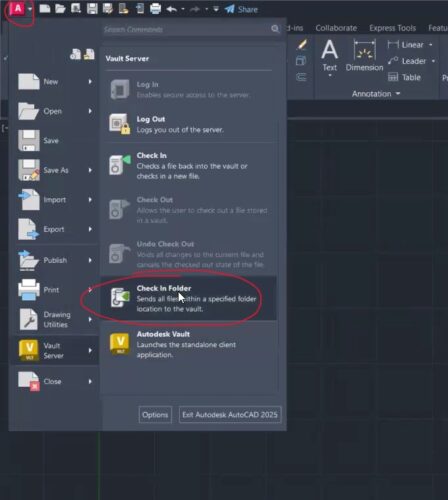
- Click the Application Menu (big “A” or “M”) > navigate to Vault > choose Check In Folder.
3. Bulk Check-In Block Files
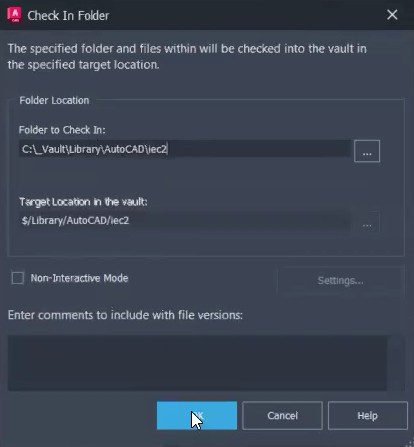
- In the “Check In Folder” dialog, browse to your block library folder.
- Vault will automatically scan and populate the list of files in that folder.
- Review the destination folder in Vault and click OK.
- Vault will:
- Check in each file individually
- Generate visualization previews (optional but helpful)
- Ensure version control is applied to all block files
4. Use Blocks via the Blocks Palette (Insert Method)
- In AutoCAD, go to the View tab.
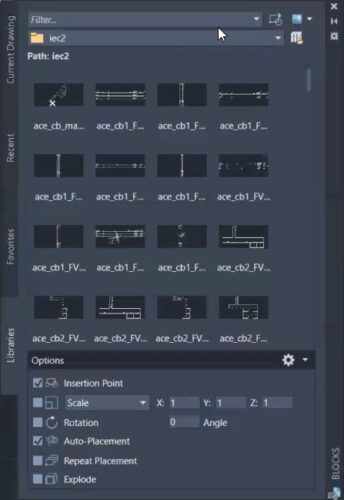
- Open the Blocks palette.
- Click the folder icon in the palette to browse to your downloaded block folder.
- Select it and click Open.
- All blocks will appear visually.
- Drag and drop blocks directly into your drawing.
5. Use Blocks via Attach (Xref Method)
- In AutoCAD, use the
- Attach function from the Insert tab.
- Browse directly into the
- Vault library via the file dialog.
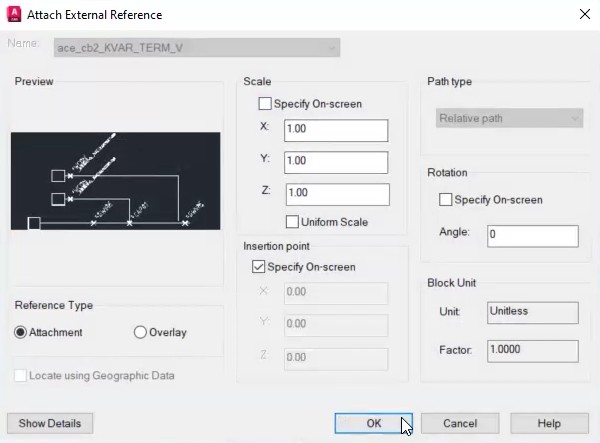
- Choose a block file and click Open.
- Set insert scale and placement, then click OK.
- Vault will automatically Xref the block, meaning:
- You’re linking to an external file
- Updates to the original block will reflect in your drawing
6. Save and Check In Your Drawing
- After inserting blocks, make your changes.
- Save the file (watch for the * symbol indicating unsaved work).
- Check it into the Vault from the Vault tab in AutoCAD.
Block Insert vs. Xref: Key Differences
When using blocks in AutoCAD with Vault, there are two main approaches: inserting blocks or attaching them as external references (Xrefs).
Inserting a block embeds it directly into the drawing file, making it static and independent of its original source. This is ideal when you want the content to remain unchanged, regardless of updates made elsewhere.
Attaching a block as an Xref, on the other hand, creates a live link to the original file stored in Vault. This method is beneficial when you want changes to the original block to be reflected automatically in all drawings that reference it.
Choosing between these methods depends on whether you prefer static content or up-to-date references throughout your projects.
Conclusion
Configuring AutoCAD block libraries in Vault transforms how your organization manages design content, improves version control, and supports collaboration across teams. By following these step-by-step instructions, you’ll ensure your blocks are accessible, searchable, and secure, no matter how many users or projects you have. Take advantage of Autodesk Vault’s powerful features to optimize your CAD workflows, enforce best practices, and support future growth.