
A robust Microsoft SQL installation is an important foundation to any successful Vault Professional, Vault Basic, or Vault Workgroup deployment. In this guide, we walk you through choosing the right SQL Server version, running the installer, configuring your Vault database, and even upgrading existing instances.
Follow these best practices to ensure your Vault Server environment is optimized for version control, data management, and smooth Vault Client access.
1. Choose Your SQL Edition & Version
Before you begin the installation process, confirm your system requirements on Autodesk Docs for or Vault Basic. Under database servers, Vault supports:
- SQL Server 2017, 2019, 2022
- Editions: Express (free, 10 GB limit), Standard, Enterprise
Tip: For small teams or a test environment, SQL Server Express is sufficient. Larger production Vaults typically require Microsoft SQL Server Standard or Enterprise for unlimited storage and high‑availability features.
2. Download & Prepare the Installer
- Download the SQL media from Microsoft’s site (or through your corporate licensing portal for Standard/Enterprise).
- Choose Download Media to get the full installation package, this lets you run the setup on a separate machine or store it on a shared network drive.
- Extract the files to a dedicated folder (e.g., D:\SQL2019_Install) so you can launch SQL Server Installation Center or use SQL Server Management Studio later for database administration.
3. Install a New SQL Instance
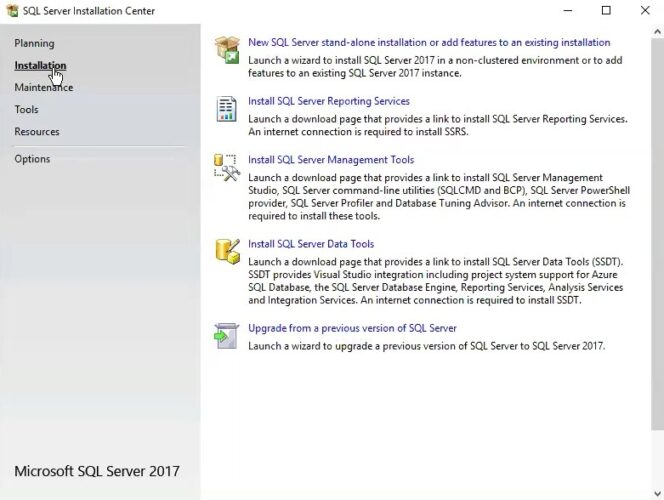
Launch SQL Server Installation Center and select New SQL Server stand‑alone installation:
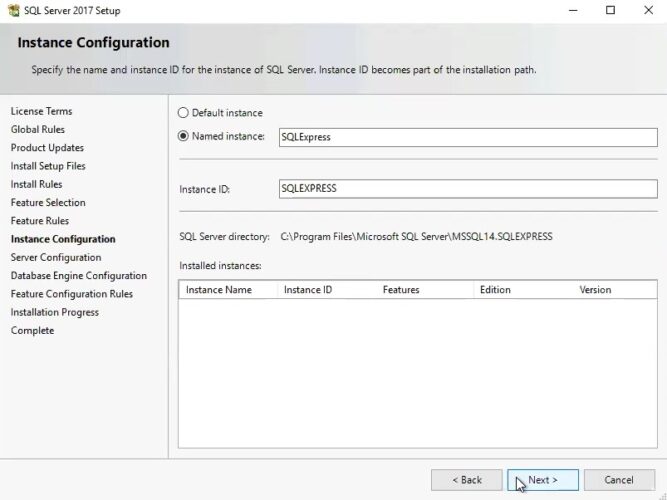
A. Instance Configuration
Use a descriptive named instance (e.g., VAULT2019) rather than the default, especially if you host multiple Autodesk products on the same server.
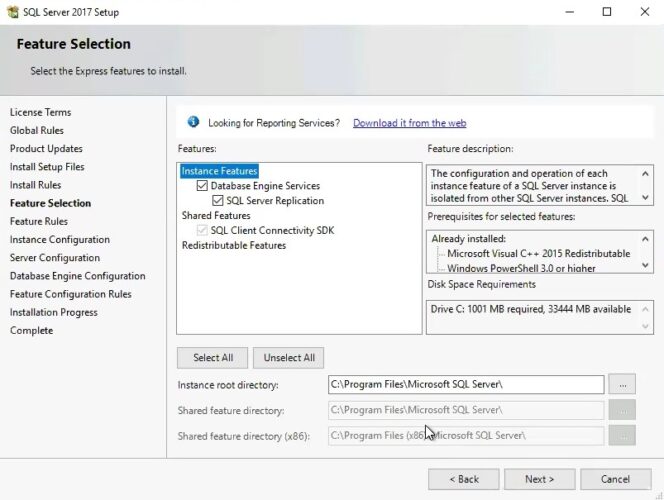
B. Feature Selection
Install Database Engine Services and SQL Server Replication (required for certain Vault Client workflows and automated backup jobs).
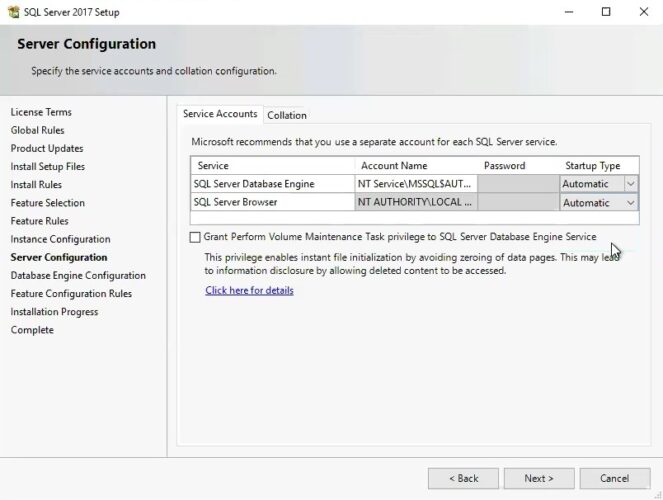
C. Service Accounts & Startup
Set both services to Automatic under Server Configuration to ensure SQL always restarts after server reboots.
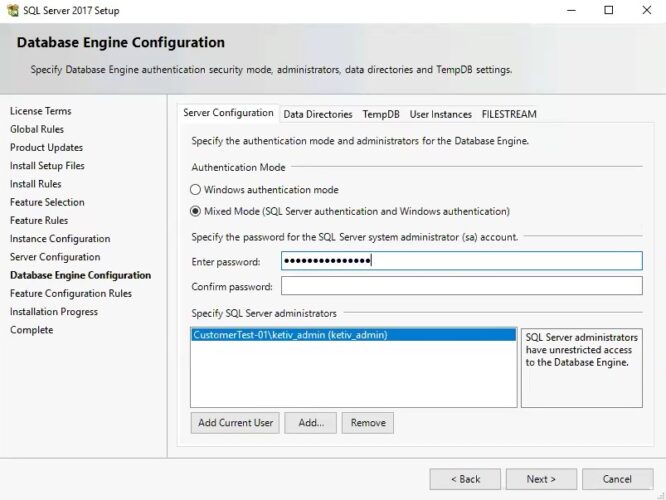
D. Authentication Mode
- Enable Mixed Mode (SQL and Windows Authentication).
- Specify the SA (SQL Admin) password that Vault expects (available in the Vault installation guide).
- Use Windows Authentication to add one or more local administrator accounts for emergency access if the SA account is locked out.
Continue through the installer until you see green check marks for all rules, this confirms your SQL database engine is ready.
4. Upgrade an Existing SQL Version
If you already have SQL Server (e.g., 2017) and need to move to a newer SQL version supported by a newer version of Vault. Upgrading avoids the need to rebuild your Vault database from scratch and preserves your existing data, version control, and backup configurations.
- Download and extract the new SQL media (e.g., 2019).
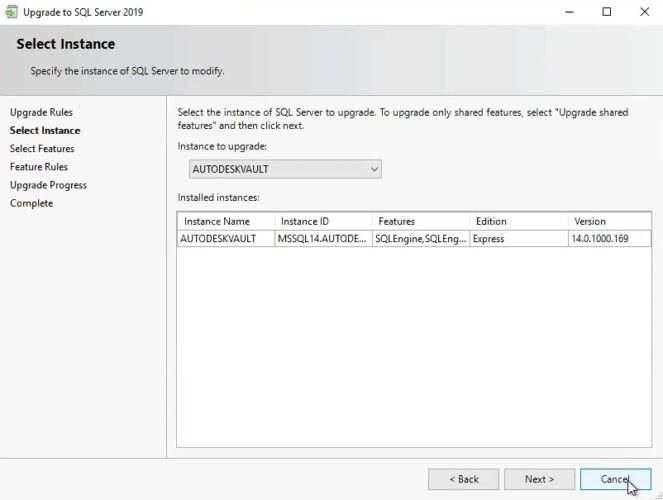
- In SQL Server Installation Center, choose Upgrade from a previous version of SQL Server.
- Select your existing Vault instance from the list, accept the license, and let the wizard apply schema and engine upgrades.
- Verify all features, Database Engine, Replication, Full‑Text Search, remain enabled.
5. Post‑Install Configuration & Next Steps
- SQL Server Management Studio (SSMS): Install SSMS on your admin workstation to manage security, backups, and maintenance plans.
- Firewall & Network Deployment Tools: Open TCP port 1433 (or your custom port) for Vault Server and plan for Vault Client deployment using Active Directory or your favorite deployment software.
- Integrations: Vault’s SQL backend directly supports Autodesk Inventor, AutoCAD Plant 3D, and Autodesk Construction Cloud workflows, confirm your IIS settings only if you plan to host Vault’s web services.
- Backups & Disaster Recovery: Schedule regular full and transaction‑log backups via SQL Agent to protect your data management solution.
- Autodesk Support & Community: For troubleshooting, visit the Vault Forum, Licensing Forums, or discipline‑specific hubs like Architecture Forums, Civil 3D Forums, and Manufacturing Forums. Autodesk University also offers deep dives on advanced Vault administration.
Your Autodesk Vault deployment is only as strong as the SQL foundation beneath it. By selecting the right SQL Server edition, configuring a stable instance, and performing any necessary upgrades with precision, you ensure that Vault Professional or Vault Basic has the performance, reliability, and scalability needed to support your engineering team’s data workflows. With SQL properly installed and secured, you’re ready to move forward with Vault Server installation, lifecycle configuration, and client rollout. For ongoing success, keep SQL Management Studio handy, establish a robust backup strategy, and stay connected with the Autodesk community for support and continuous learning.