Ansys Resources from KETIV

Get the most from your Ansys investment
We've aggregated these resources to ensure a smooth start and allow for expansive growth in using your Ansys solution.

Getting Started Guides

Signing up for Ansys Portals

To get started, you’ll first need an Ansys account. This unlocks access to the majority of the Ansys Portals. When signing up for the first time, you’ll need your customer number, which you can get from your sales representative or the appropriate contact in your organization.

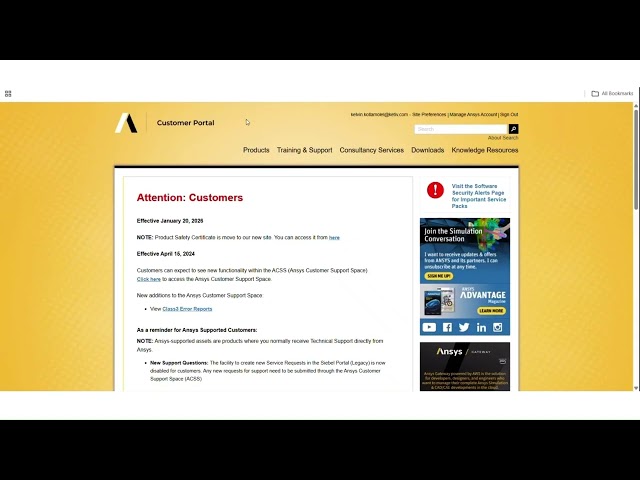
  1. Go to the Ansys Customer Portal
  2. Click “Sign Up or Sign In”
  3. Enter your email address, then click “Continue” and follow the prompts.
  4. Once done, you’re signed in and can access downloads, licensing portals, and more.

Tip: If you don’t see the verification email, check your spam folder or ask your IT team to whitelist messages from “ansys.com”.

Explaining the Client–Server Concept

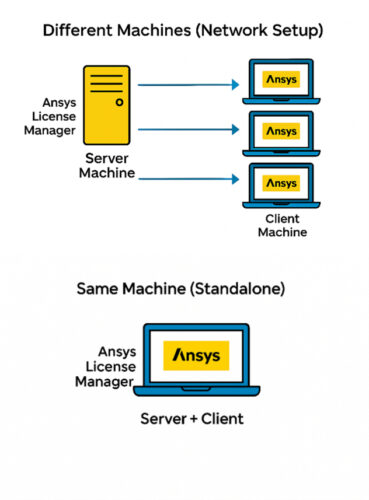
Ansys uses a server–client model for license management.

  • The server machine hosts the Ansys License Manager and distributes licenses upon client machine request. After the analysis is complete, the client machine will return the floating license to the server for somebody else to use.
  • The client machine runs Ansys software and connects to the server for licenses.

There are two setup pathways:

  • Same Machine (Standalone): The server and client are the same computer.
  • Different Machines (Network Setup): The server hosts the licenses, and multiple client machines connect to it. The server network must be available 24/7.

Installing the License Manager on the Server Machine

Installing the Ansys License Manager (ALM) is necessary for hosting Ansys licenses. The only machines that require the ALM to be installed are the ones that are intended to host the licenses, i.e. the server. 

  1. Login to the Ansys Customer Portal
  2. Hover over the Downloads header on the upper right and click Current Release
  3. Scroll down to the Tools subsection near the bottom middle and download Ansys License Manager package
  4. Extract the .zip file and run setup as administrator (right click on setup.exe, more, run as administrator)
  5. Select Install Ansys License Manager and follow the instruction prompts to install the software
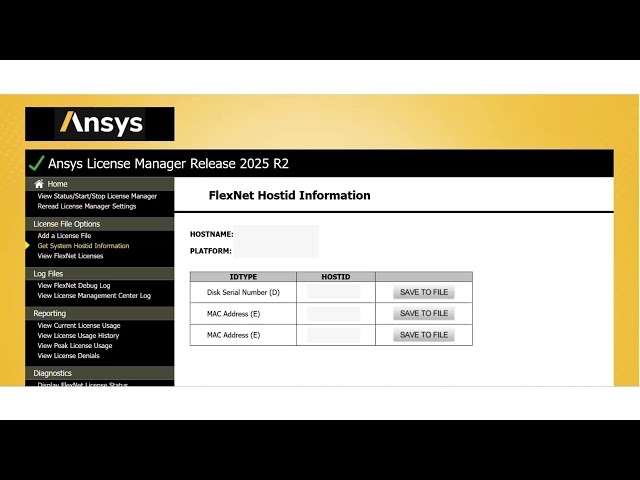
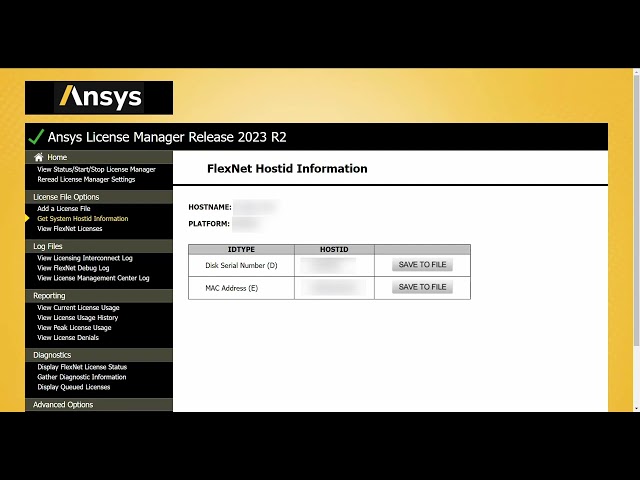
  6. After installation, click on Get System Hostid information (upper left, 4th link down) to retrieve your machine’s host information. Note down the first Mac Address row (Host Name and Host ID) information as you’ll need it later for license configuration.

Activating Entitlements / Generating License File

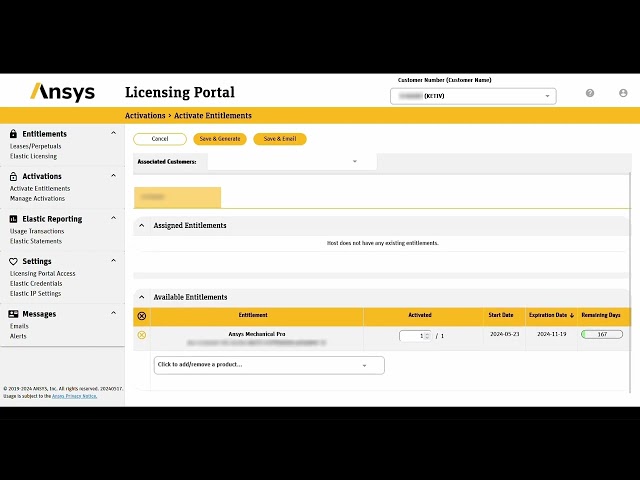
To use your Ansys software, the entitlements associated to your customer account (signified by a long string of numbers) need to be activated. Once they are activated, you can generate and add the license to the host machine to start using your Ansys software.

  1. Log in to the Ansys Licensing Portal. If you cannot login here, please contact support@ketiv.com
  2. Under the Activations header on the left, select “Activate Entitlements.”
  3. Click Add Server and enter your host machine information from the Ansys License Manager, or upload from License File if you already have one. If the server already exists, find it in the drop-down menu and select it.
  4. Remove any unneeded entitlements by selecting the circle with an “x” icon. Make sure the number of licenses assigned is correct.
  5. Click Save & Generate. Your license file will be created and saved to the Downloads folder for your browser.

Setting Up the Server Machine (After License Manager Install)

The server hosts the Ansys License Management Center (LMC), which manages the licenses.

  1. Open the Ansys License Management Center on the host machine (usually at http://localhost:1084).
  2. Click Add a License File (3rd link down on the left).
  3. Select Browse at far right, locate the license file generated from the Ansys Licensing Portal, and click Open.
  4. Once added, the LMC will confirm that the license has been installed successfully,
  5. Click on View/Start/Stop at upper left to confirm that the ANSYS license management center is running. If not, press Start.

You have now finished setting up the server.

Downloading/Installing Ansys Software on the Client Machine

Downloading and installing Ansys software is simple and straightforward.

  1. Login to the Ansys Customer Portal.
  2. Hover over the Downloads header at upper right and click Current Release.
  3. Select the desired release version and operating system from the dropdowns at the top.
  4. Scroll down to view available packages and select the package to download.Tip: It is recommended to download packages from the Primary Packages subsection. Avoid using the automated installer, as it can sometimes cause incomplete or failed installations.
    These are the primary Ansys product packages you can download:

    • Mechanical: Mechanical, LS-DYNA, Motion, Additive, Sherlock, Autodyne, nCode
    • Fluids: Fluent, CFX, Forte, Rocky, Polyflow
    • Electronics: Maxwell, HFSS, SIwave, Icepak, Q3D
    • Other Packages: 3D Design (discovery), Granta (Materials), Speos (Optics, Zemax), Twin Builder (System Simulation)
  5. Right-click on the zip file downloaded and extract it.
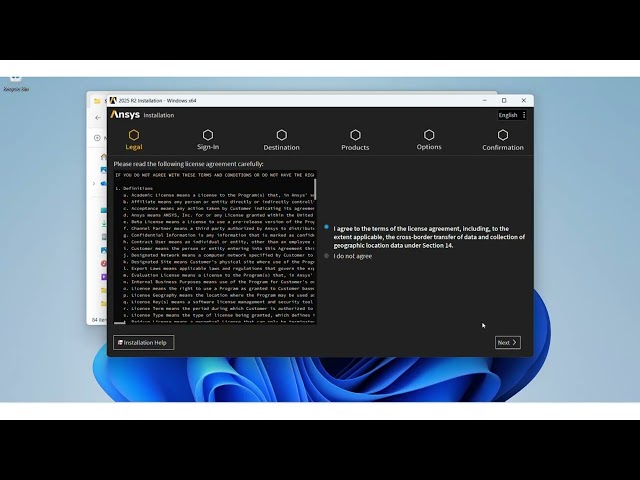
  6. Run the setup.exe from the extracted folder as Administrator (Right-click on setup.exe/more/run as administrator).
  7. Select Install Ansys Products and follow the instruction prompts to install the software. When prompted, enter the server hostname above. If you don’t have one, please see your IT department.

Setting Up Licensing on the Client Machine

Each client must know where to find the license server.

  1. Open Ansys Client Licensing Settings (found in the Start Menu under Ansys Tools).
  2. Click on License Servers on the left and make sure the Enabled switch is turned on.
  3. In the Port field, enter your port number (default: 1055), and in Server 1, enter the Hostname of your license server (the name shown in the server’s Get System Hostid Information, or obtained from your IT department).
  4. Click Test, then Save.
  5. Launch Ansys to verify the license connection.

You can now use your ANSYS software!

For IT Personnel

Managing Entitlements

In the case that entitlements or hosts need to be swapped around and changed, knowing how to manage the activated entitlements is important.

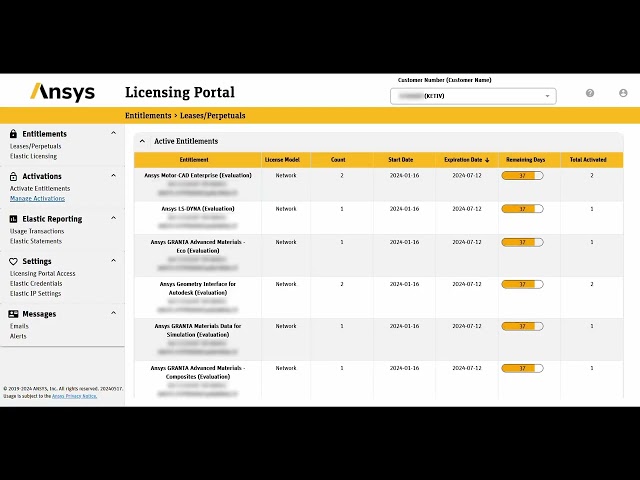
  1. Login to the Ansys Licensing Portal
  2. Select “Manage Activations” under the “Activations” header
  3. Select the Host Server with the associated, activated entitlements
  4. Icons located across from the Host Server name allow for management
    • Eye: View activations on Host
    • Down Arrow: Download license file associated with the Host
    • Right Arrow: Rehost the license file to a different server
    • X: Deactivate the Host Server

Firewall instructions

Open up ports 1055 and 1056 between client and server (all firewalls, and/or security software (i.e. Crowdstrike, SentinelOne, etc.) To check this, please do the following:

  1. Make sure in a command prompt that ping <servername> works. If not, there is no connection between machines.
  2. Install telnet onto the client machine (type windows features in search bar, click on turn windows features on/off, scroll down to the Ts, check the “Telnet” box, and OK)
  3. Then, in a command prompt, type telnet <server name> 1055, then enter. If the port is open, a blank screen will occur; press enter to get back to a prompt. If it is closed, the telnet will fail.
  4. Also verify that telnet <server name> 1056 works.

In your security antivirus software on the server, create whitelist exceptions for lmgrd.exe and ansyslmd.exe executables in the folder C:\Program Files\ANSYS Inc\Shared Files\licensing\winx64. Also create a whitelist exception for the C:\Program Files\Ansys Inc\ directory and all subdirectories (i.e. whitelist it) on both the client and the server.

(If this is not done, the antivirus software can interdict ANSYS licensing or other software, and ANSYS programs will crash upon opening.)

Portals

Ansys Customer Portal: support.ansys.com
To download Ansys software, head to the Customer Portal.
Learn more
Ansys Licensing Portal: licensing.ansys.com
To manage entitlements and servers, head to the Licensing Portal.
Learn more
Ansys Help: ansyshelp.ansys.com
To troubleshoot your Ansys software, head to the Ansys Help.
Learn more
Ansys Innovation Space: courses.ansys.com
To learn how to use simulation software, head to the Innovation Space.
Learn more
Ansys Learning Hub: ansys.com/services/ansys-learning-hub
To learn how to use Ansys at a higher level, head to the Learning Hub*.

*Note: The Learning Hub is a paid service, please reach out to your Sales rep for more information.

Learn more
Ansys License Manager: localhost:1084*
To activate licenses and access server diagnostics, head to the License Manager.

*Note: The License Manager is installed only on machines hosting licenses.

Learn more

Additional Information & Help

Entitlement: Software purchased from Ansys 

License: File provided by Ansys that allows software to run on machines 

KETIV QuickStart Services 

  • Personalized engineering time with dedicated application engineer 
  • Product/workflow training, guidance on projects, onboarding new users, technology enablement 

KETIV Professional Services 

  • Consulting for Computational Fluid Dynamics (CFD), Finite Element Analysis (FEA), Electromagnetics (EM) engineering

Need more help?

For questions and concerns with your Ansys software, contact KETIV Support: support@ketiv.com. 

For help getting your Ansys software setup, contact KETIV Customer Success: customersuccess@ketiv.com. 


KETIV's Simulation Team

Snigdha Sarkar
Simulation Practice Leader

 
Snigdha serves as the Simulation Practice Lead and is a certified Ansys Application Engineer, specializing in Fluids and Multiphysics simulations. She holds a Master's Degree in Mechanical Engineering with a focus on Computational Fluid Dynamics (CFD). Her expertise encompasses various areas, including heat transfer, multiphase flows, discrete phase flows, FSI, battery modeling, and combustion. With extensive experience in the automotive industry, Snigdha possesses an in-depth understanding of how to harness the power of simulation for improving product performance, reducing costs, and minimizing time-to-market. Snigdha specializes in supporting and training customers in CFD and Design Optimization tools such as Ansys Fluent, Discovery, CFX, Polyflow, Chemkin, Workbench, Ansys Rocky, and Autodesk CFD.

Graham Stevens
Application Engineer, Simulation

 
Graham Stevens is a certified ANSYS Application Engineer (AE) and has been designing new products for over 25 years.  His focus is on bringing products from the laboratory into production and cost reduction, and serves as a simulation AE for low frequency and high frequency electronics, electronics cooling and reliability, optics, optimization, and multi-physics.  He has a B.S. in Physics, and a Masters in Manufacturing Engineering

Hari Mohan
Application Engineer, Simulation

 
Hari obtained his Ph.D. in Mechanical Engineering from the University of South Carolina and specializes in Structures, especially composite materials. He has a strong background in computational mechanics and numerical modeling, and has contributed to research projects sponsored by NASA, Spirit AeroSystems, and Collins Aerospace. He loves playing soccer, ‘creating noise on the piano’, and exploring the great outdoors.

Matt Beutler
Simulation Application Engineer

 
Matt Beutler is a Simulation Application Engineer with seven years of experience performing advanced structural and dynamic simulations using Ansys tools. He holds a Master’s degree in engineering from California Polytechnic State University, San Luis Obispo and specializes in rotordynamics, structural dynamics, explosive analysis, ALE methods, and hyperelastic material modeling. Matt has supported projects across the aerospace and defense industries, helping clients understand complex physical behavior through high-fidelity simulation. His work focuses on applying advanced numerical methods to solve challenging structural problems and deliver practical, engineering-driven insights that guide design decisions.

Kelvin Kollamolel
Engineering Simulation Intern

 
Kelvin Kollamolel is a Simulation Engineer Intern at KETIV, where he supports advanced modeling and simulation initiatives for manufacturing and engineering teams. He is a recent master’s graduate from California State University, Fullerton, with a focus on design, analysis, and manufacturing, including Industry 4.0 tools and methods. During his academic career, Kelvin presented his work at the ASME IDETC/CIE conference, contributing to discussions in cyber physical systems and smart manufacturing. He brings a strong technical interest in simulation, product design, and modern manufacturing workflows.